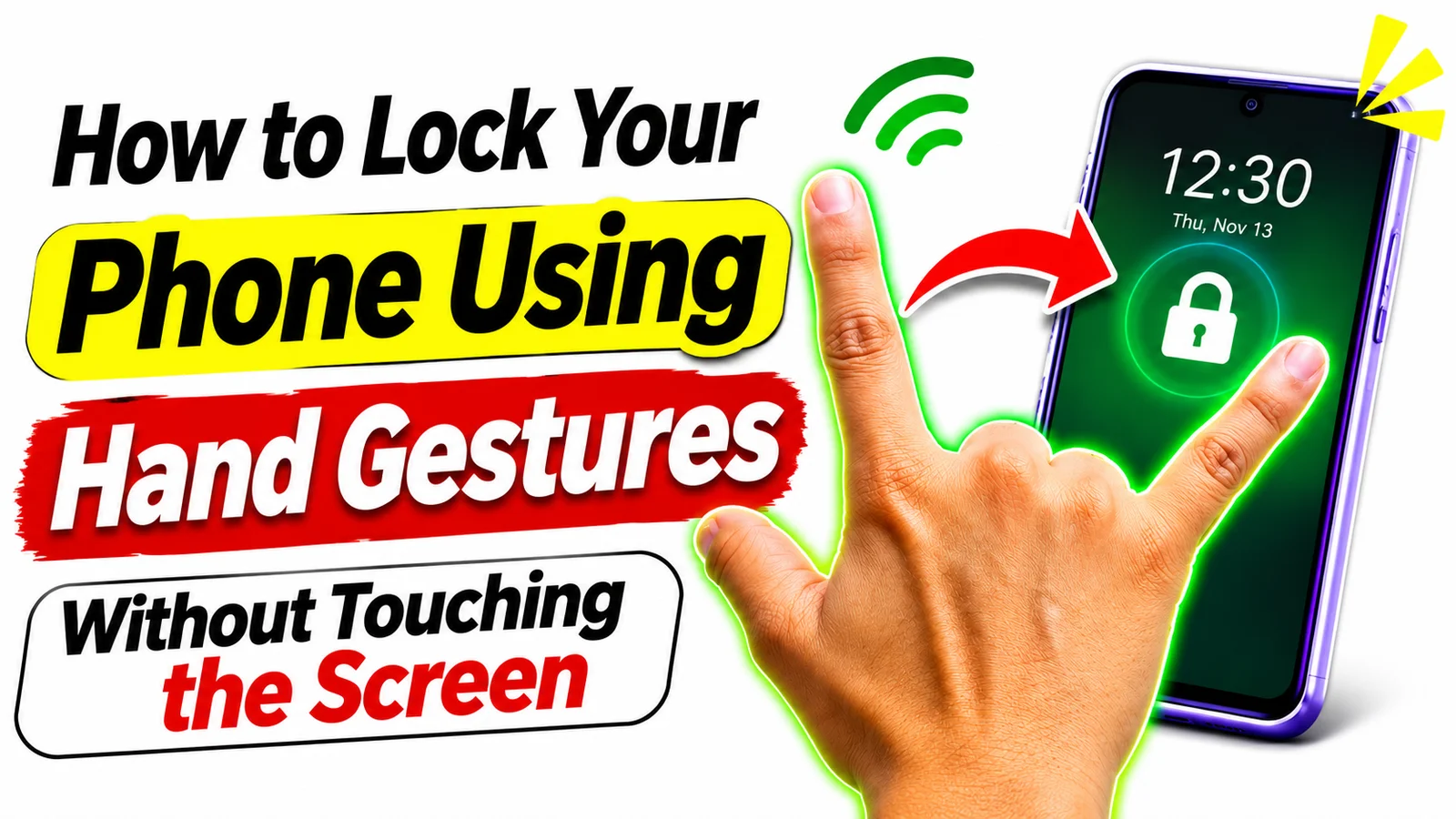
How to Lock Your Phone Using Hand Gestures Without Touching the Screen
Have you ever wanted to lock your smartphone without pressing the power button or touching the display? Imagine waving your hand over your Android phone and watching the screen turn off automatically. It may sound like a futuristic feature, but you can experience similar functionality using proximity sensor technology and compatible Android applications.
Modern smartphones come with several useful sensors that detect movement, distance, and nearby objects. Some applications use these sensors to provide touchless controls, allowing users to perform certain actions without directly interacting with the display.
In this guide by Celeboxo, we will explain how to lock your phone using hand gestures without touching the screen. You will learn how proximity sensors work, which applications you can explore, how to configure gesture controls, and how to troubleshoot common problems.
Can You Lock an Android Phone Without Touching the Screen?
Yes, some Android smartphones support proximity sensor-based applications that can turn off the display when you move your hand over the sensor.
The proximity sensor is generally located near the front camera or earpiece area. Its primary purpose is to detect nearby objects, especially during phone calls. When your face approaches the screen, the sensor helps turn off the display to prevent accidental touches.
Certain Android applications use the same sensor to recognize hand movements. When you cover the sensor with your hand, a compatible application may trigger a screen-lock action.
However, this feature does not work on every smartphone. Your device must support the required sensor functionality, and the application must be compatible with your Android version.
How Does Hand Gesture Screen Lock Work?
The hand gesture screen-lock feature generally works through your smartphone’s proximity sensor.
When you move your hand close to the sensor, the device detects a nearby object. A compatible application monitors this sensor activity and performs an action when it recognizes the configured gesture.
Here is how the process generally works:
- Your Android smartphone detects your hand near the proximity sensor.
- The installed application recognizes the sensor activity.
- The application triggers the configured screen-lock command.
- Your display turns off and the phone locks.
Some applications also offer wave-to-wake functionality, allowing users to activate the display with a hand movement. Available features depend on the application and device compatibility.
Method 1: Use WaveUp to Lock Your Phone
WaveUp is an Android application designed to use the proximity sensor for screen control. It can provide wave-based screen activation and screen-lock functionality on compatible devices.
Follow these steps to try it:
- Open Google Play Store on your Android smartphone.
- Search for WaveUp.
- Install the application from its official listing.
- Open the application and review its available settings.
- Enable the screen-lock feature if supported.
- Grant the required permissions after reviewing them.
- Place your smartphone on a flat surface.
- Move your hand over the proximity sensor.
If your device and application support the selected feature, the screen should turn off.
Some settings may be disabled by default, so check the application configuration before testing the gesture.
Method 2: Try Wave to Lock/Unlock Screen
Another option is an application called Wave to Lock/Unlock Screen. It offers proximity sensor-based controls that may help users lock or wake their Android displays.
Here is how to configure it:
- Open Google Play Store.
- Search for Wave to Lock/Unlock Screen.
- Install the application.
- Launch it and explore the available options.
- Enable the wave or proximity sensor feature.
- Find the screen-lock setting.
- Grant necessary permissions if requested.
- Move your hand over the proximity sensor to test the function.
The exact settings may vary depending on the application version and Android device.
Method 3: Try Motion-Based Gesture Applications
If proximity-based controls are not working on your device, you can explore motion-based gesture applications.
Some applications use the accelerometer to recognize physical movements such as shaking, lifting, or flipping the phone.
Depending on the application, available features may include:
- Shake to lock the screen.
- Flip the phone to lock.
- Lift to wake.
- Motion-based controls.
- Proximity-based screen activation.
These features are not universally supported. Check application compatibility and permissions before installing any motion-control tool.
Method 4: Use Android’s Built-In Accessibility Menu
If you do not want to install a third-party application, Android offers a built-in Accessibility Menu on supported devices.
This menu provides useful shortcuts, including a screen-lock option.
Follow these steps:
- Open your smartphone Settings.
- Select Accessibility.
- Find Accessibility Menu.
- Enable its shortcut.
- Follow the instructions displayed on your screen.
- Open the Accessibility Menu.
- Select Lock Screen if available.
This method is not completely touch-free because you still need to activate the on-screen shortcut. However, it is a useful alternative for users who prefer built-in Android tools.
Menu names and availability may vary between smartphone manufacturers.
Which Hand Gesture Screen Lock App Should You Choose?
Different applications provide different features. Here is a quick comparison to help you understand your options.
| Application | Main Function | Best For |
|---|---|---|
| WaveUp | Proximity sensor controls | Wave gestures |
| Wave to Lock/Unlock Screen | Wave and cover sensor | Touchless controls |
| Shake to Lock applications | Motion-based controls | Shake gestures |
| Android Accessibility Menu | Screen-lock shortcut | Basic phone control |
Before installing an application, check its current Google Play listing, developer information, user reviews, permissions, and compatibility.
Important Permissions Required for Gesture Screen Lock
Some applications require additional permissions to control the smartphone display.
Accessibility Permission
Certain applications use Android Accessibility Services to perform the screen-lock action. This permission can provide significant control over device interactions, so only enable it for applications you trust.
Device Administrator Permission
Some screen-lock applications request device administrator access to lock the display. This is a powerful permission and should be granted only when necessary and when you trust the developer.
Background Activity Permission
Some gesture applications need to monitor sensor activity while running in the background. Battery optimization settings may affect this functionality.
Always review requested permissions and avoid granting access unrelated to the application’s purpose.
Why Is the Hand Gesture Feature Not Working?
Sometimes the screen-lock gesture does not work as expected. Several common problems may be responsible.
1. Your Phone Does Not Support the Required Sensor
Some smartphones do not include a dedicated proximity sensor or use a different sensor implementation. Check your device specifications before trying a proximity-based application.
2. Your Screen Protector Is Blocking the Sensor
A thick or incorrectly positioned screen protector may interfere with proximity detection.
Check the area around the earpiece and front camera to ensure the sensor is not obstructed.
3. The Application Is Not Running in the Background
Android battery management may restrict applications that monitor sensor activity.
Check the application’s battery settings and follow the developer’s instructions.
4. Required Permissions Are Disabled
The screen-lock action may require accessibility or device administrator access.
Review the application settings and enable only the permissions necessary for its features.
5. Gesture Sensitivity Needs Adjustment
Some applications provide sensitivity settings or allow users to change how long the sensor must be covered.
Try adjusting these options to improve gesture detection.
Is It Safe to Use Hand Gesture Screen Lock Applications?
Gesture-based screen-lock applications can be convenient, but security and privacy should always come first.
Follow these precautions:
- Download applications from trusted official sources.
- Check the developer and application reviews.
- Review accessibility permissions carefully.
- Avoid downloading unknown modified APK files.
- Do not grant unnecessary administrator access.
- Keep your Android operating system updated.
- Remove applications you no longer use.
Remember that turning off the display is different from securely unlocking your phone. Always protect your smartphone with a PIN, password, pattern, or supported biometric authentication.
Frequently Asked Questions
Can I lock my Android phone by waving my hand?
Yes, compatible applications can use the proximity sensor to recognize when your hand covers or moves over the sensor and trigger a screen-lock action.
Can I lock my phone without pressing the power button?
Yes. Some Android applications provide proximity or motion-based controls that can lock the display without requiring you to press the physical power button.
Does every Android phone support hand gesture locking?
No. Compatibility depends on your smartphone sensors, Android version, and the application you choose.
Can I unlock my phone using hand gestures?
Some applications support wave-to-wake functionality. However, you may still need to enter your PIN, password, pattern, or use fingerprint authentication to unlock the device.
Does proximity sensor screen lock drain battery?
Battery usage depends on the application and device. Applications that continuously monitor sensor activity may consume additional power.
Can I use hand gestures without installing an application?
Some smartphones offer built-in gesture features, but proximity-based hand-wave screen locking is not universally available.
Is it safe to install screen-lock applications?
Applications from trusted developers and official app stores are generally a safer choice. Always review permissions, privacy information, and user feedback before installation.
Final Words
Locking your Android smartphone using hand gestures without touching the screen can be a convenient way to control your device. With compatible proximity sensor applications such as WaveUp and Wave to Lock/Unlock Screen, you can explore touchless controls and reduce your reliance on the physical power button.
Start by checking whether your smartphone supports the required sensor. Install a trusted application, configure its settings carefully, and test the gesture functionality.
At Celeboxo, our goal is to share helpful Android tutorials, smartphone tricks, application guides, online technology tips, and useful digital resources. Keep exploring Celeboxo for more practical guides that help you get the most out of your technology.